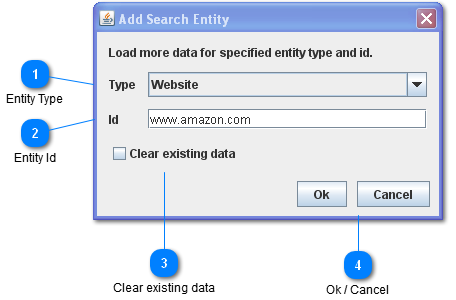
The Add Search Entity dialog works along with the
Navigator Db Api or
Mcsv projects to allow new data to be retrieved from the server for a specified entity type / id.
 Entity Type
The type of the entity to be retrieved. This can also be though of as the search type. For instance if the entity type is "person" we will then search the database for a particular person. If the database type is "organization" we will be searching for an organization. This is assuming that the database being accessed has a "person" and "organization" tables.
|
|
 Entity Id
The id of an entity to be retrieved. The Navigator Db Api or Mcsv script should use the entity id as a seed to return information about multiple entities and relations that have something to do with the specified entity id. For instance when searching for a book, we might return a list of authors and subject entities related to the book.
|
|
 Clear existing data
If this check box is checked, then the exiting graph data will be cleared before doing a search for the entity type / id. Otherwise data for the specified type / id will be added to the current dataset.
|
|
 Ok / Cancel
Ok: Perform the search and load more data.
Cancel: Close the dialog without loading more data.
|
|