TouchGraph Navigator 2, Welcome!
Licensing and Support
Samples Licensing
Installation
System Requirements
Navigator Web Installation
Applet Launcher Page
TouchGraph Navigator Overview
Menus
File Menu
Export Data dialog
Export Image dialog
Add Search Entity dialog
Settings Menu
Edit Menu
View Menu
Tools Menu
Help Menu
Definitions
Navigator 2: New Features
Loading Wizard
Select Input
Excel
CSV / TSV
MCSV
Navigator DB API
NavigatorDbApi Script
MySQL
Data Types & Delimiters
Entities & Relations
Choose A Table
Edit Entity
Edit Relation
Dynamic Relations
Co-occurrences
Dynamic Attributes
Aliases
Settings
Names - Types / Attributes
Names - Entity Labels
Filter - Inclusion
Filter - Attribute Filters
Add Filter Dialog
Node - Colors
Node - Label / Image
Node - Halo Size / Shape
Node - Node Tags
Edge - Colors
Edge - Width / Pattern
Edge - Tags / Arrows
Graph Layout
Graph Panel
Nodes, Edges
Graph Interaction
Connected Components
Zooming, Spacing
Graph Toolbar
Color Chooser Dialog
Cluster Dialog and Algorithm
< Previous page Next page >

Export Image dialog

Export Image dialog
 
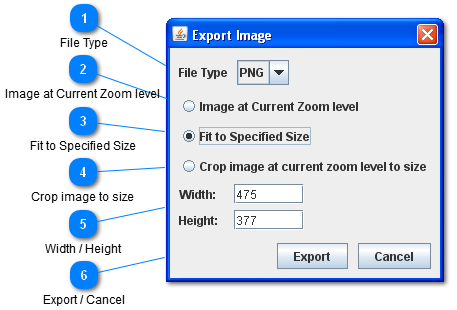
The Export Image dialog allows exporting the graph image from Navigator Desktop and Navigator Web.
 
1

File Type

 
Select the export image file type.  For now PNG is the only supported export format, more are coming in future releases.
 
[Top]
2

Image at Current Zoom level

 
Export the graph image at the current zoom level as it appears in the graph panel. 
  • The whole graph image will be expanded beyond the boundaries of the scroll panel.
 
[Top]
3

Fit to Specified Size

 
Use the width / height text fields to specify the scaled size of the image to be exported.  The exported image must be proportional in dimensions to the current image dimensions.
 
 
[Top]
4

Crop image to size

Crop the visible image at the current zoom level so that only a central portion is exported. 
Use the width / height text fields to specify the size of the cropped region to be exported.
 
[Top]
5

Width / Height

 
The width / height text fields are used when "Fit to specified size" or "Crop image at current zoom level to size" options are selected.
[Top]
6

Export / Cancel

 
Export:
  • Shows a prompt verifying the file name of the exported image, and writes the image to file. 
  • Navigator Web uses a script specified by the applet_image_capture parameter to save images exported from the applet to the server and let the used download them from there.
     
Cancel:
  • Close the export image dialog.
 
 
[Top]